LinkTool User Manual
Getting Started: Downloading Your First Pack
This manual will guide you through downloading a data pack from your Psion Organiser II to an OPK file usingthe LinkTool web application.
What You'll Need
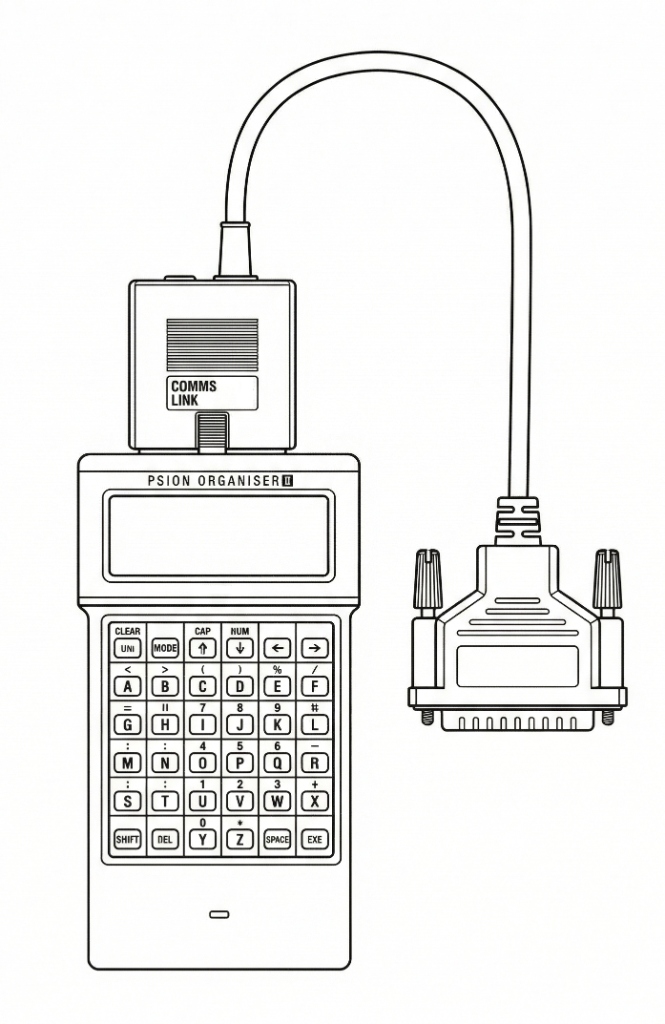
Psion Organiser II
With COMMS Link and data pack installed (Pack Bor Pack C)
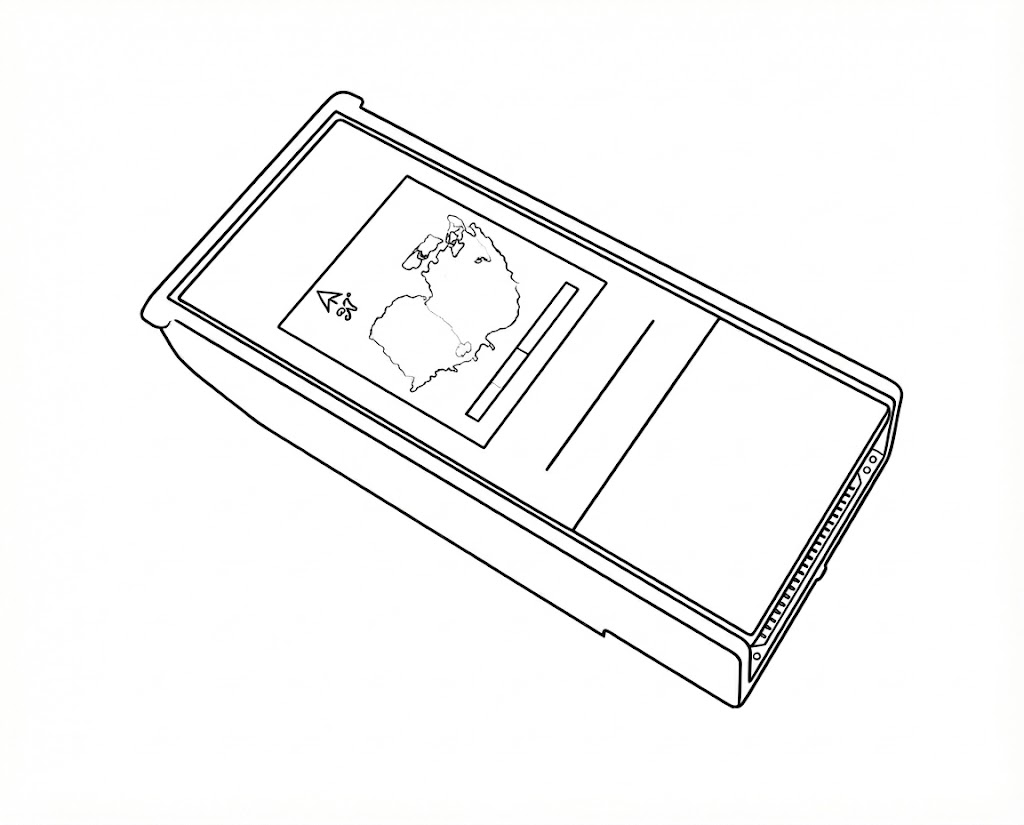
Data Pack
Pack B or Pack C
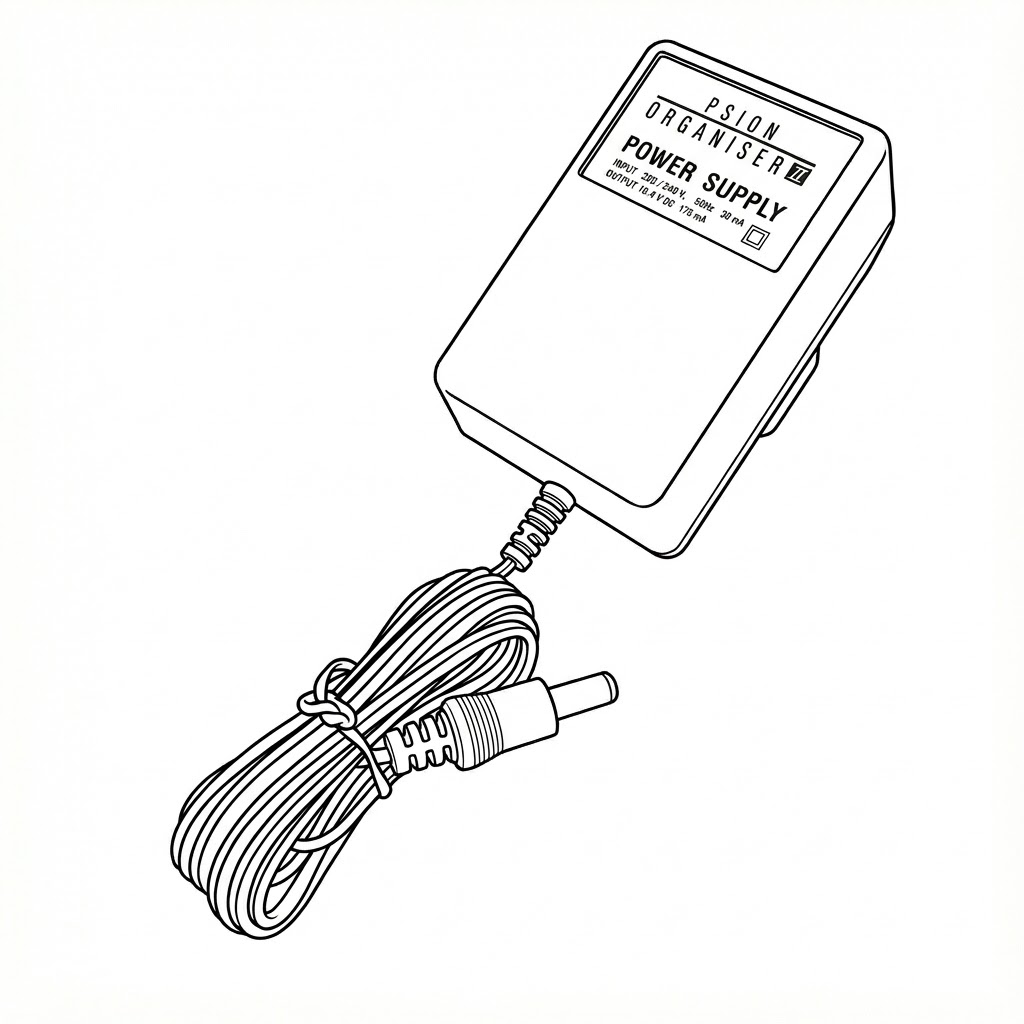
Power Supply
Recommended
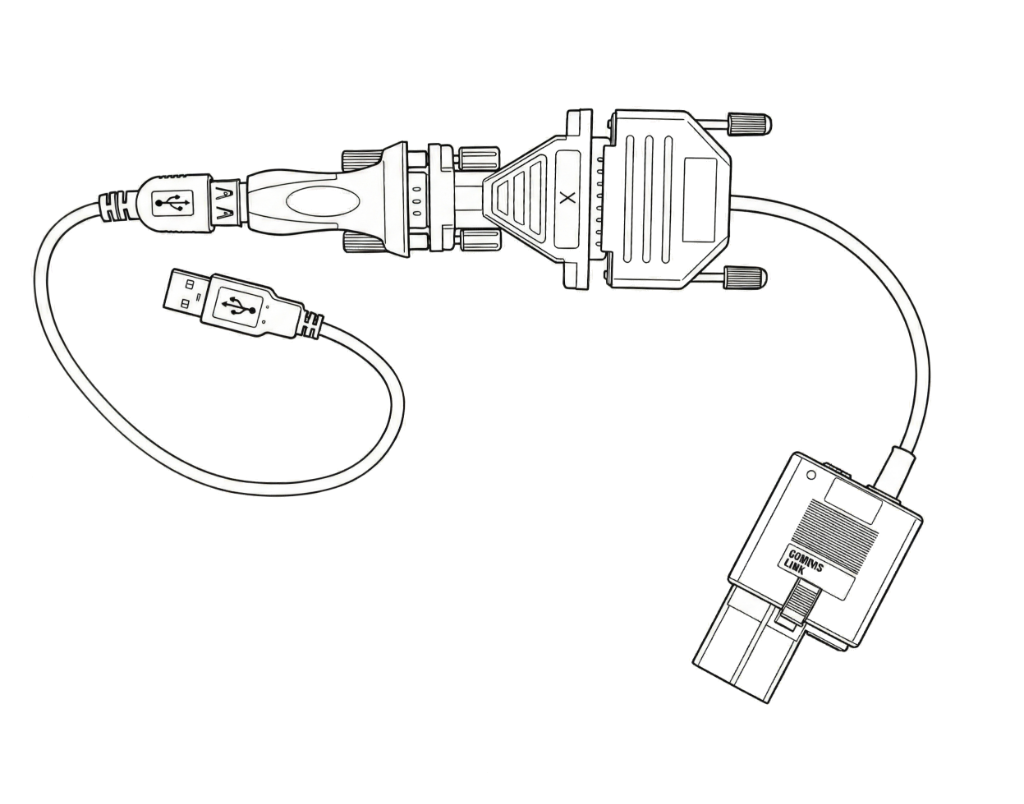
Serial Connection
USB-to-serial adapter and cable to connect toyour computer
Software Requirements
Compatible web browser: Chrome 89+, Edge 89+,or Opera 75+
Step-by-Step Guide
1. Prepare Your Hardware
- Locate a place (e.g. folder) on your PC, Laptop or Table that will be used to save the datapak image OPK
- Power off the Organiser
- Remove any RAM Packs !
- Insert the COMMS Link into the Top Slot
- Connect your Psion Organiser II to your computer using the serial adapter and/or Comms Link cable
- - Recommended - Plug in a mains adaptor to the COMMS link
- Turn the Organiser ON to automatically install the Comms software
- If the pack you wish to read is a RAM pack:
- Switch OFF again
- Insert the Ram pack(s)
- Turn the Organiser ON again
- Open the LinkTool web application in your browser
2. Select the Pack to Download
Before connecting, choose which pack you want to download:
- Click the "Pack select" button to toggle between Pack B and Pack C
- The default selection is Pack B
- The button will display your current selection
3. Prepare the Psion Organiser II
Important: To avoid timeout issues, prepare your Psion Organiser II beforeconnecting in the tool.
- On your Psion Organiser II, navigate to the main menu
- Select COMMS
- Select BOOT
- Navigate to NAME: (leave it blank - no name is required)
- Stop here - do not press EXE yet
4. Connect and Start the Download
Now that your Psion Organiser II is ready at the NAME: prompt:
- Click the "Connect" button in the web application
- Your browser will display a serial port selection dialog
- Select the COM port corresponding to your serial adapter
- Click "Connect" in the browser dialog
- Wait for the tool to display "Searching for Device..." in the status area
- Now press EXE on your Psion Organiser II to start the transfer
The tool will immediately detect the device and begin the download process.
5. Monitor the Download Progress
The LinkTool will automatically:
- Place boot code into the Psion Organiser II's RAM
- Transfer the pack data from the selected pack
- Display real-time progress in the communication log
- Show a progress indicator as data is received
You'll see messages in the log window showing:
- Boot injection progress (Pairs 0-6)
- Data transfer phases (HEADER and BODY)
- CRC verification results
- Completion status
6. Save Your OPK File
Once the download completes the OPK is now stored in the browser:
- The "Save Pack" button will become enabled
- Click "Save Pack" to download the OPK file to your computer
- Your browser will prompt you to save the file (default name:
pack_b.opkorpack_c.opk) - Choose a location and save the file
my_contacts_2026.opk).7. Disconnect
After saving your OPK file:
- Click the "Disconnect" button to release the serial port
- You can now safely disconnect the serial cable from your Organiser II
What is an OPK File?
An OPK file is a binary image of a Organiser II data pack. It contains:
- Magic header (
OPK!) identifying the file format - Length field indicating the size of the pack data
- Pack data (the actual contents of your data pack)
- Terminator marking the end of the file
OPK files can be viewed and edited using the OPK Editor tool, which allows you to:
- Inspect the raw contents of the pack
- View and modify individual records
- Analyze the pack structure
- Export data in various formats
Troubleshooting
Connection Issues
- Solution: Ensure your serial adapter is properly connected and drivers are installed
- Check Device Manager (Windows) to verify the adapter is recognized
- Solution: The port may be in use by another application. Close any terminal programs or other applications using the serial port
Transfer Issues
- Solution:
- Check the serial cable connections
- Ensure the Psion Organiser II is in the COMMS BOOT menu
- Try disconnecting and reconnecting
- Verify the correct pack is selected
- Solution:
- This may indicate communication errors
- The tool will automatically retry failed message transfers.
- Ensure the serial cable is in good condition
- Undamaged connection contacts
- High quality twisted pair & screened cables
- Try reducing electrical interference near the cables, by
- Relocating cables
- Reducing cable lengths
- Turning off other devices
- Turning off RF interference sources (e.g Electrical devices, Mobiles, Walkie talkies / PMR etc.)
- The tool will automatically retry failed transfers
Psion Organiser II Issues
- Solution:
- This may indicate a timing issue
- Reset the Psion Organiser II and try again
- Ensure you're using the correct boot sequence (COMMS → BOOT → NAME)
Advanced Features
Debug Mode
For troubleshooting or protocol analysis, you can enable debug mode:
- Add
?debug=trueto the end of the LinkTool URL - Reload the page
- The communication log will show detailed protocol information including:
- Raw packet data
- Timing information
- Detailed state transitions
Serial Port Settings
The LinkTool uses the following default serial parameters:
- See the COMMS | SetUp menu item
- BAUD rate: 9600
- Data bits: 8
- PARITY: None
- Stop BITS: 1
- Flow control: None
These settings match the default Organiser II Comms Link specifications and only need adjustment if they have been changed.
COMMS Link Compatibility
Some very early COMMS links do not support the BOOT protocol used by the tool. You can verify the COMMS link version when it is in the Organiser using the PEEKB(8441) command entered into the Calculator Feature:
- CALC:PEEKB(8441)
Values of 17 (decimal) and above are compatible
Next Steps
After downloading your pack to an OPK file, you can:
- Back up your data by storing the OPK file in a safe location
- View the pack contents using the OPK Editor tool
- Transfer the pack to another Psion Organiser II by reversing the process (if supported)
- Archive multiple versions of your packs over time
- Verify the integrity of your packs over time using the check sums
Additional Resources
- Community Forum: Visit Organiser2Forum for discussions and support
- Original Protocol Documentation:Jaap Scherphuis's Psion Page
Legal Notice
All information is for indication only. No association, affiliation, recommendation, suitability, or fitnessfor purpose should be assumed or is implied. Registered trademarks are owned by their respectiveregistrants.
License: Creative Commons (with non-commercial restrictions on certain elements - see source documentation)
← Back to LinkTool